

Windows
Windows
If you build a web application, chances are good that you’ve received user requests for dark mode support in the past couple of years. While some users may simply prefer the aesthetics of dark UI, others may find that dark mode helps ease eye strain or helps reduce screen brightness at night. To make it easier for websites to support a cohesive dark mode theme, Microsoft and Google have collaborated to bring support for dark mode form controls to Chromium. Dark mode controls are available in Microsoft Edge on desktop as of v87. More recent collaborations extend support to the Android platform: these changes will begin showing up in , and will be available in future versions of Microsoft Edge for Android. When the web developer expresses support for dark mode, and the user has this mode enabled, our user agent (UA) stylesheet will “auto-darken” form controls out-of-the-box:
Any styles added by the web developer or user will override the user agent style as per usual—if you’ve made your text input background hot pink, you’ll need to update that color yourself in dark mode using the Here’s how you can take advantage of dark mode support for HTML form controls.
The browser will apply its user agent stylesheet to all controls in your document: The Chromium UA stylesheet also includes color scheming for the document background, text, and link colors. In this example, the web developer did not specify these colors in their own stylesheet, so the document is now automatically rendered as light text on a dark background. If you don’t have control over the head of your document, or prefer keeping all color support bits in CSS, you can instead use the :
:root {
color-scheme: light dark;
}
Opting into both light and dark schemes on the
.schemed-area {
color-scheme: light dark;
}
We’re targeting the
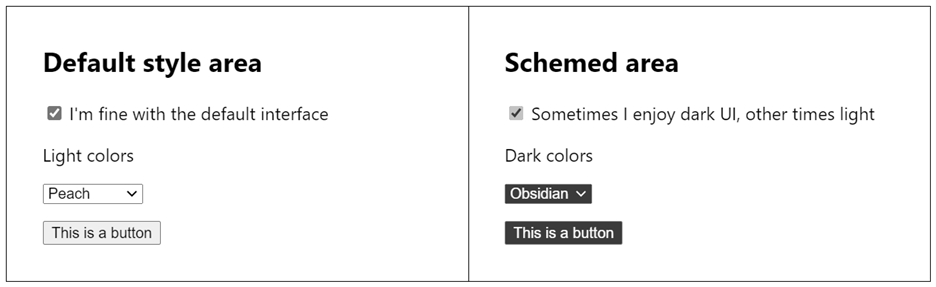 With dark mode enabled on the system, no changes were applied to the contents in the “Default style area” box. Within the “Schemed area” box, the form controls were updated to dark mode aesthetics. You may notice that—unlike opting into color schemes at the root—non-control contents in the “Schemed area” were unchanged by the user agent’s dark theme. Instead, web developers should manage text and background colors for the schemed area using the
—Melanie Richards, Senior Program Manager —Sam Sebree, Software Engineer —Ionel Popescu, Software Engineer —Bo Cupp, Principal Software Engineer —Brian Heston, Senior Designer
| Light mode | Dark mode |
Render all document form controls in dark mode
A meta tag declaration with the signals to the browser which color modes the web application supports. To tell the browser it is safe to render controls as light or dark, declare the following in the head of your document:The browser will apply its user agent stylesheet to all controls in your document: The Chromium UA stylesheet also includes color scheming for the document background, text, and link colors. In this example, the web developer did not specify these colors in their own stylesheet, so the document is now automatically rendered as light text on a dark background. If you don’t have control over the head of your document, or prefer keeping all color support bits in CSS, you can instead use the :
:root {
color-scheme: light dark;
}
Opting into both light and dark schemes on the
:root means that all the controls in your document will pick up the active color scheme—essentially equivalent to the meta tag declaration. Render specific form controls in dark mode
Some web developers might need to apply dark color schemes only to some areas of their application. In such a case, you can continue to use the color-scheme CSS property, instead with a more specific selector:.schemed-area {
color-scheme: light dark;
}
We’re targeting the
.schemed-area div with our selector, so color-scheme specific UA styles will only cascade to this element and its descendants. Here’s what that looks like with dark mode enabled:
prefers-color-scheme media query.Share your feedback
We’re excited to make it a bit easier for web developers to support dark mode in Chromium, and are eager to hear what you think! If you run into any issues or have any feedback, use the in-app feedback button (or Alt+Shift+I). You can also reach out to us on . Thanks for your feedback!—Melanie Richards, Senior Program Manager —Sam Sebree, Software Engineer —Ionel Popescu, Software Engineer —Bo Cupp, Principal Software Engineer —Brian Heston, Senior Designer