

Tablets have always allowed one to lock the screen orientation to either portrait or landscape, but the latter has not been possible on smartphones, at least not those made by Samsung. But did you know the ability to lock screen orientation to landscape is available on the , and any device that runs the Samsung Experience 8.5 or newer interface?
That’s right: You can finally use your Samsung phone in landscape mode and not have to deal with the orientation flipping back to portrait just because you turn the phone just a tad sideways. Again, this feature is only available on Samsung devices running at least Samsung Experience 8.5; it will be present on newer versions as well, including Samsung Experience 9.0 that will debut on .
So, how does one lock screen orientation to landscape on the Galaxy Note 8 and other Samsung phones? Just follow the steps below to see how it’s done.
How to lock screen orientation to landscape on the Galaxy Note 8
Step 1: Access the notification shade by swiping down from the top of the screen, then swipe again to access the quick toggles.
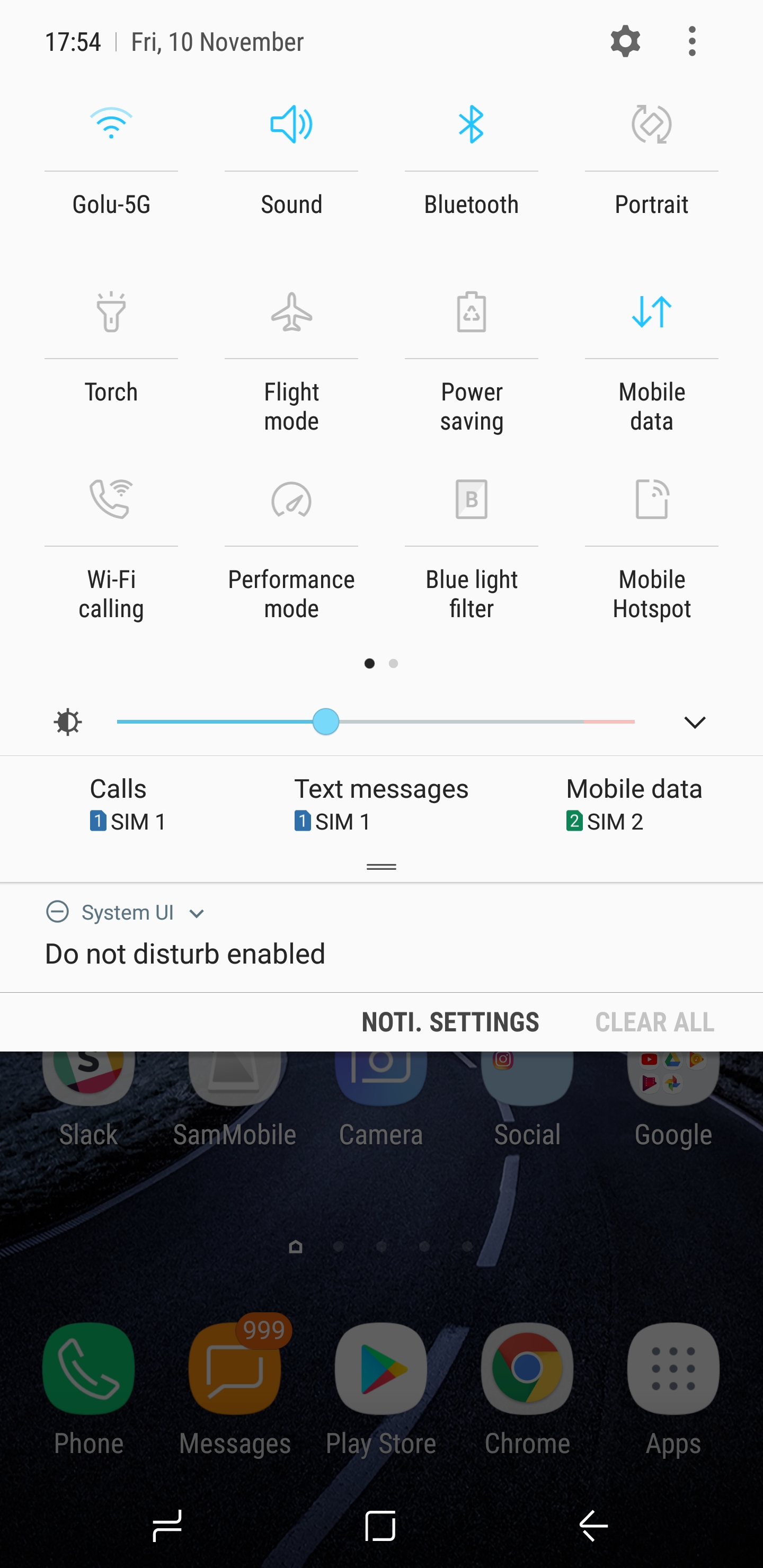
Step 2: Here, tap the screen rotation toggle repeatedly till it says Auto Rotate.
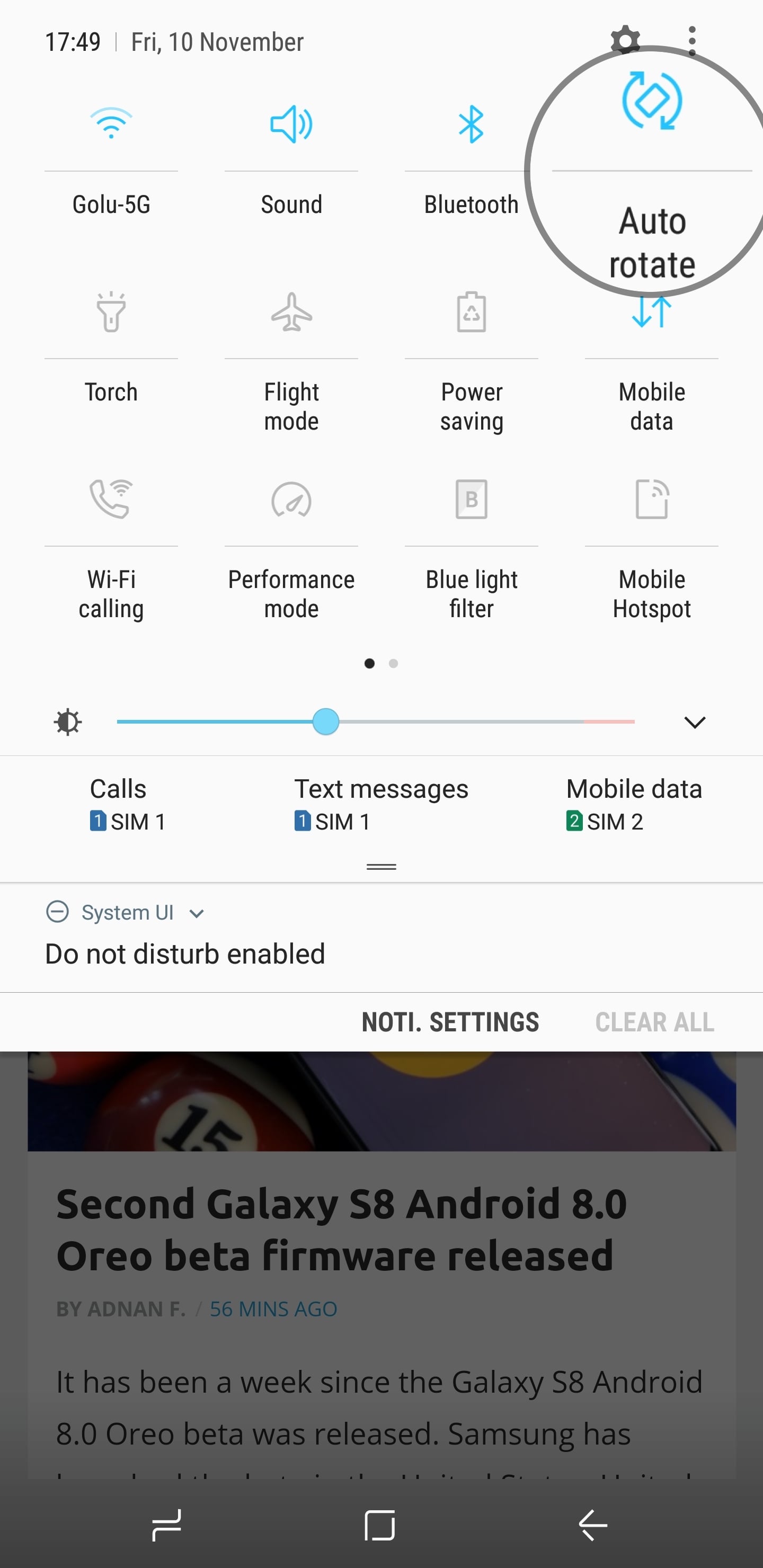
Step 3: Then, rotate the phone to make the screen flip to landscape orientation. Then, bring up the toggles again and tap the screen rotation toggle till it says Landscape.
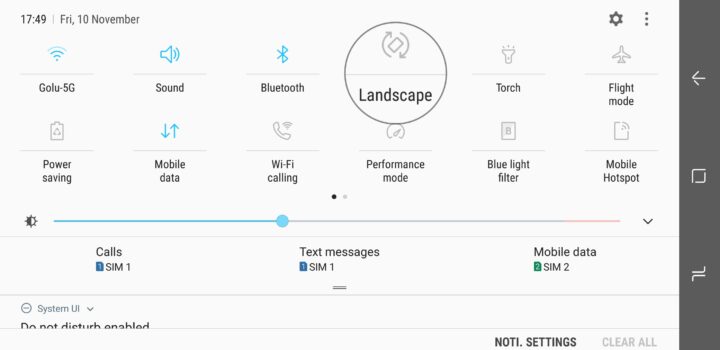
That’s it. Your phone’s screen will now continue to work in landscape mode (at least in apps and menus that support it; the home screen, for example, only works in portrait) until you re-enable auto rotation, turn the phone to portrait orientation, then tap the rotation toggle in the notification shade till it says Portrait.
Check out other to make the most of your phone, and let us know if you run into any issues so we can help get you back on track.
The post appeared first on .
That’s right: You can finally use your Samsung phone in landscape mode and not have to deal with the orientation flipping back to portrait just because you turn the phone just a tad sideways. Again, this feature is only available on Samsung devices running at least Samsung Experience 8.5; it will be present on newer versions as well, including Samsung Experience 9.0 that will debut on .
So, how does one lock screen orientation to landscape on the Galaxy Note 8 and other Samsung phones? Just follow the steps below to see how it’s done.
How to lock screen orientation to landscape on the Galaxy Note 8
Step 1: Access the notification shade by swiping down from the top of the screen, then swipe again to access the quick toggles.
Step 2: Here, tap the screen rotation toggle repeatedly till it says Auto Rotate.
Step 3: Then, rotate the phone to make the screen flip to landscape orientation. Then, bring up the toggles again and tap the screen rotation toggle till it says Landscape.
That’s it. Your phone’s screen will now continue to work in landscape mode (at least in apps and menus that support it; the home screen, for example, only works in portrait) until you re-enable auto rotation, turn the phone to portrait orientation, then tap the rotation toggle in the notification shade till it says Portrait.
Check out other to make the most of your phone, and let us know if you run into any issues so we can help get you back on track.
The post appeared first on .