

Joystiq
Joystiq News
You can take a screenshot on your iPhone, your , your , you name it. But what about your Apple Watch? If there’s an alert you want to keep safe, or you want to show off your personalized watch face to a friend, you can easily do that without whipping out your iPhone to take a picture of your watch. The Apple Watch has a built in way that makes taking a screenshot more accessible — it just takes a few steps to enable. Here’s how to take a screenshot on an Apple Watch.
To take a screenshot on an Apple Watch, you first have to enable the feature, which you can do directly from your wearable. Just go into the Watch’s settings and select general, then scroll to screenshots. Toggle on the enable screenshots option.

Photo by Julia Mercado / Engadget
You can also use your iPhone to set up the screenshot feature for your Watch. Go into the Watch app, select general and scroll down to toggle the enable screenshots option.
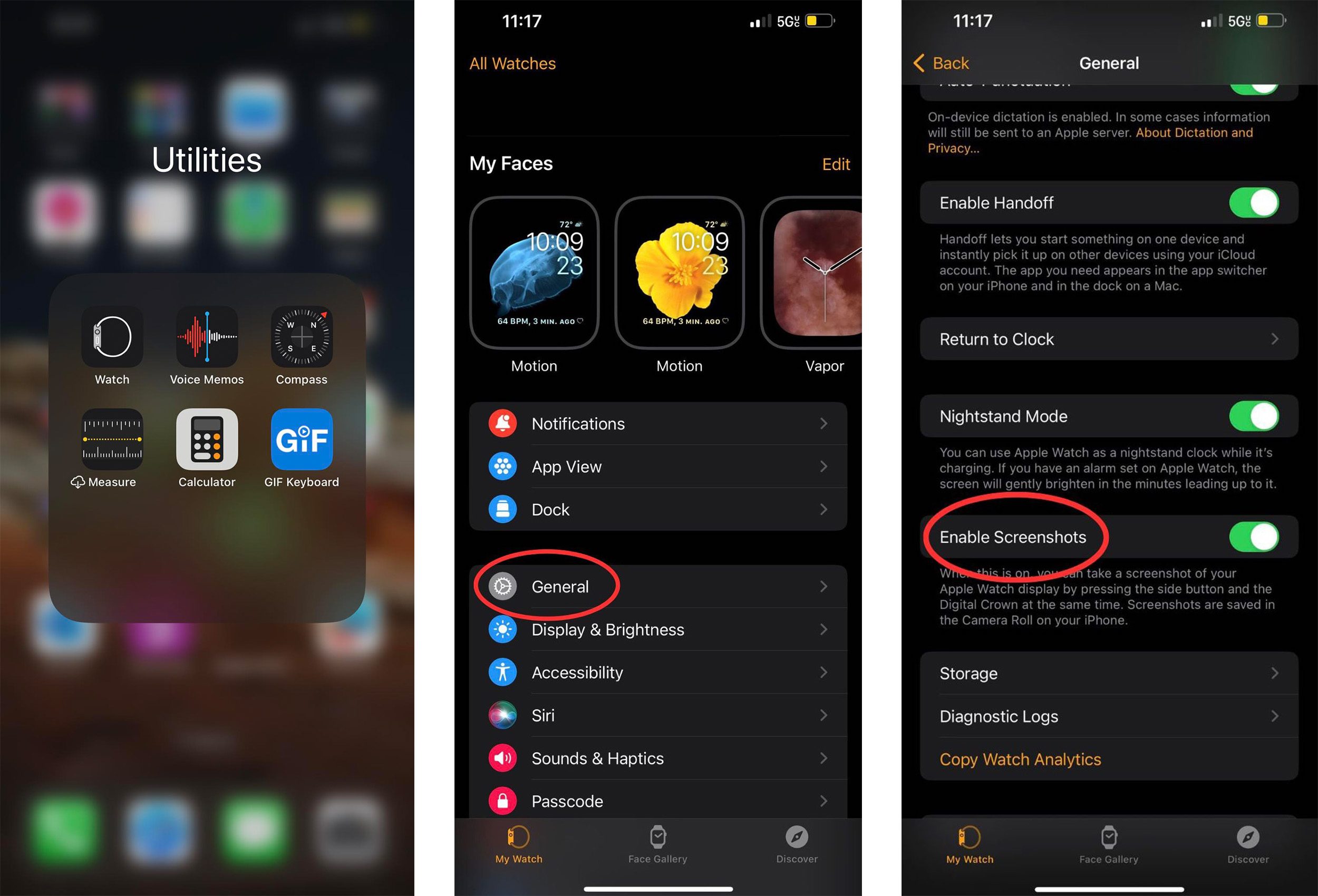
Photo by Julia Mercado / Engadget
To take a screenshot on the Apple Watch, press the Digital Crown and the side button simultaneously. They will go right to your Photos library.
You can find Apple Watch screenshots in the Photos app on your iPhone under media types in the screenshots folder. If you would like to see those screenshots on the Watch itself, you can sync the album from your iPhone to show them on your watch. To enable this, go to your Watch app, tap Photos and select photo syncing then tap sync album to link the album of your choice.
This article originally appeared on Engadget at
Console Bang News!
How to set up the screenshot feature on an Apple Watch
To take a screenshot on an Apple Watch, you first have to enable the feature, which you can do directly from your wearable. Just go into the Watch’s settings and select general, then scroll to screenshots. Toggle on the enable screenshots option.
Photo by Julia Mercado / Engadget
How to set up the screenshot feature from an iPhone
You can also use your iPhone to set up the screenshot feature for your Watch. Go into the Watch app, select general and scroll down to toggle the enable screenshots option.
Photo by Julia Mercado / Engadget
How to take a screenshot on the Apple Watch
To take a screenshot on the Apple Watch, press the Digital Crown and the side button simultaneously. They will go right to your Photos library.
How to view Apple Watch screenshots
You can find Apple Watch screenshots in the Photos app on your iPhone under media types in the screenshots folder. If you would like to see those screenshots on the Watch itself, you can sync the album from your iPhone to show them on your watch. To enable this, go to your Watch app, tap Photos and select photo syncing then tap sync album to link the album of your choice.
This article originally appeared on Engadget at
Console Bang News!